AI Burning Bridges Photo to Video: Turn Your Photo Into a Viral Video
Turn one portrait into a Burning Bridges AI party video. Follow the upload, generation, preview and download steps, with photo tips, audio details and credit costs.
Upload one clear portrait to turn your photo into a Burning Bridges AI video. The generator places your likeness into a built-in party video template, following its movements and camera timing. You do not need to film a performance, upload your own source clip, or write a prompt.
The result is a 15-second, vertical 9:16 MP4 with source audio, available at 720p or 1080p. Generation uses 100 credits at 720p or 200 credits at 1080p. Open the generator to preview the template and prepare your photo.
What Is AI Burning Bridges Photo to Video?
AI Burning Bridges photo to video is a character-replacement workflow: your photo supplies the person's appearance, and a reference video supplies the party setting, performance, camera movement and timing. The AI combines these inputs to create a personalized clip inspired by the Burning Bridges trend.
The system already includes the video template and model instructions. Your main choices are the portrait and output resolution. The scene is designed for a short vertical video you can download and share; using a popular format does not guarantee that a post will go viral.
How to Turn a Photo Into a Burning Bridges AI Video
1. Preview the party template
Visit the generator and watch the reference before starting. Check the person being replaced, the camera gestures and the surrounding scene. The selected template determines the performance your video follows.
2. Upload one portrait
Choose a sharp photo of yourself with your face visible and evenly lit. The generator accepts JPEG, PNG and WebP files up to 10 MB. Use a single-person portrait so the intended subject is clear. A normal head-and-shoulders photo works; you do not need a party background or a matching pose.
3. Choose the resolution and review credits
Select 720p for 100 credits or 1080p for 200 credits. Both options use the 15-second vertical template and include source audio. Sign in, confirm the photo consent and review the displayed cost. If you need credits, choose a one-time pack on the pricing page.
4. Start generation and follow the task
Confirm generation after reviewing your photo and settings. The system sends the portrait, video template and preset instructions to the model. Follow the task status while the clip processes. You can return to My videos if you close the tab.
5. Preview and download your MP4
When the video is ready, play the entire clip with sound on. Check that your face remains recognizable during turns and gestures, and inspect hands, clothing and background details. Download the finished MP4 from the result panel or My videos. Preview the downloaded file before posting it.
Before and After: Photo to Video Examples
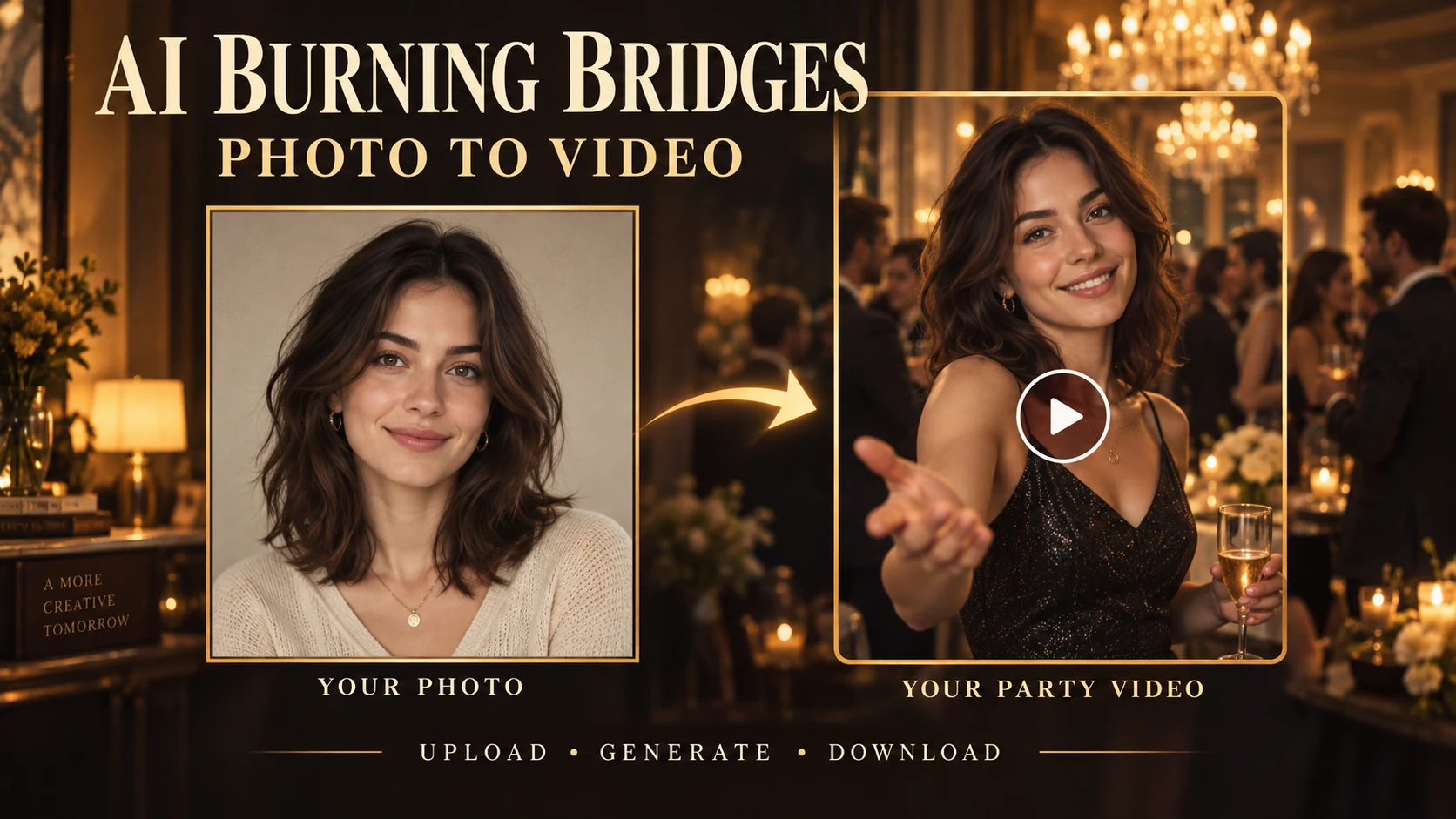
Before: a still portrait with a clearly visible face. The photo provides identity details such as facial features, skin tone and hairstyle.
After: a moving party scene that uses that identity as a reference while following the template's gestures, timing and camera movement. AI can change details during motion, so the completed clip needs a full playback check.
Watch the source template below to understand the scene and movement:
Source template preview: this is reference footage, not a result generated from a customer's portrait. The article cover is an AI-created illustration of the workflow. Verified before-and-after portrait pairs are not published here yet. Use the reference scene breakdown to explore the motion and the output review checklist to assess your own result.
Best Photos for Burning Bridges AI
- Choose a clear, front-facing portrait. Both eyes, the nose and the face outline should be easy to see.
- Use even lighting. Avoid deep shadows across the face or bright backlighting that hides facial details.
- Keep the face unobstructed. Sunglasses, masks and hair covering the eyes make the reference harder to follow.
- Skip heavy filters and group shots. Use an original photo that shows one person's natural appearance.
- Make the face large enough to recognize. A sharp head-and-shoulders photo is more useful than a distant full-body shot.
Use your own photo or a photo of an adult who has agreed to appear. A clearer input helps the model interpret your features, but it cannot guarantee perfect likeness in every frame.
Why Use Our Burning Bridges AI Generator?
The built-in workflow brings the source video and model instructions together, so you can start with one photo. You can preview the template, choose between two resolutions, see the credit cost before confirming, and retrieve the finished video from My videos.
The downloaded MP4 includes source audio. Watch and listen before sharing, and review the destination platform's rules for audio and AI-generated content. For more control in another video tool, our Burning Bridges prompt article includes a prompt you can copy and adapt.
Frequently Asked Questions
Can I generate a Burning Bridges video from just one photo?
Yes. Upload one portrait; the system supplies the source video template and generation instructions. You do not need to upload a video of yourself.
Can I replace Drake and become the main character?
The generator replaces the subject specified by its built-in template. Watch the current preview to see which person and performance it uses; there is no control for choosing an arbitrary person in the scene. If you are working with a different Drake source clip in another tool, use the copyable prompt and match its target description to that clip.
Is AI Burning Bridges photo to video free?
You can watch the reference and prepare your photo without starting a paid generation. Creating a video requires 100 credits at 720p or 200 credits at 1080p. Check the current credit packs and the amount displayed before confirming.
How long does generation take?
Processing time varies with the model's queue and workload. Follow the task status rather than relying on a fixed delivery time. A 15-second video duration describes the finished clip, not the processing time. You can check progress later in My videos.
Does the generated video include sound?
Yes. The generator is configured to preserve the source video's audio, and the finished clip includes it. Listen during your review. If a player starts muted, turn its sound on before checking the download.
What should I check before downloading or sharing?
Watch the full clip, especially face turns and hands moving across the face. Check likeness, fingers, props, clothing, background continuity and sound. If you want another attempt, try a clearer portrait and review the new generation's credit cost first.
Ready to make yours? Upload your portrait and create a Burning Bridges AI video.